Design Certificate.
A school document. Thoughtfully designed.

Create a certificate or slip template, define its recipient and printing rules, then arrange the saved design on a canvas before continuing to Print Certificate.

01Find a template

Review recipient type, date and archive filters.

02Configure the rules

Set serial format and printing choices.

03Design the page

Arrange content and connected fields.

04Preview & continue

Use the saved design in Print Certificate.

01Template register

The right document.
Easy to return to.

The register filters certificates by Student & Employee, date range, sort order and archive status. Each template row shows its title, recipient type, creation date and issued count, with configuration, design and archive actions.

  • Filter templates by recipient type and archive status.
  • Keep title, creation date and issued count together.
  • Configuration and Edit Design are separate actions.
Why it matters for your school

A reusable document has a clear home—not a collection of disconnected files.

SchogleAcademics / Student

Design Certificate · Template register

Show Certificate of
Student & Employee
Sort By
Title ASC
From / To
Date range
Show Archive
Only Unarchived
Show List
Bonafide CertificateStudent · Created 28 Aug 2026
Issued count
Edit ConfigurationEdit DesignArchive
Document rules and page design have separate editing paths.
Design Certificate · Template registerFictional sample · School context
Sample records · Reference-led concept, not a live ERP screen.
02Serial & print rules

A considered format.
Clear printing choices.

Certificate for controls which data fields are available and who the template can be printed for. Prefix, Start at and Postfix define serial format. Separate choices cover withdrawn students, parent-portal printing and how often the certificate may be issued.

  • Build a serial from prefix + number + postfix.
  • Control inclusion of withdrawn or left students.
  • Choose parent-portal printing and issuance frequency.
Why it matters for your school

The template carries its printing decisions alongside its title, instead of relying on staff to remember them.

SchogleAcademics / Student

Edit Certificate Configuration

Certificate for
Students
Title
Bonafide Certificate
Prefix
BON
Start at
1
Postfix
/2026
How often can it be issued?
Every time · fresh serial
BON1/2026BON2/2026
Print for withdrawn / left students?Yes
Let parents print from their portal?No
Prefix + number + postfix · The displayed frequency assigns a fresh serial on each print.
Edit Certificate ConfigurationFictional sample · School context
Sample records · Reference-led concept, not a live ERP screen.
03Canvas design

Arrange the page.
Keep the detail connected.

The design workspace brings layers, text, images and data fields around a central canvas. Paper size, portrait or landscape orientation, dimensions, background and guides define the page, while Preview provides a review path.

  • Arrange document elements using the canvas and layers.
  • Use recipient and system fields rather than typing every value.
  • Review paper size, orientation, background and guides.
Why it matters for your school

One saved layout can express a consistent school document while retaining the relevant recipient details.
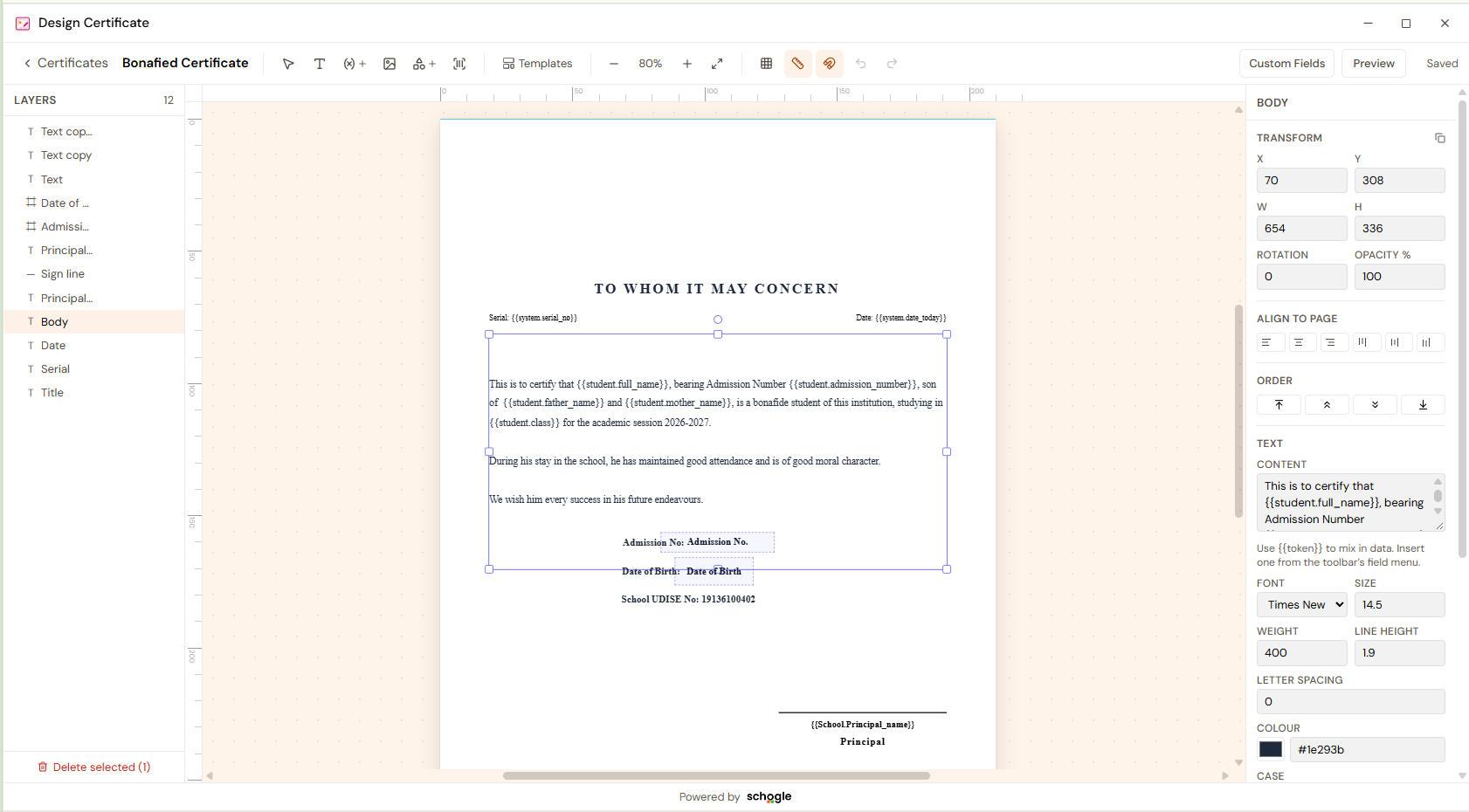
Schogle certificate Design Studio: layers on the left, a selected certificate text block on the central page, and transform, alignment, ordering and typography controls on the right.
Design Studio · Bonafide Certificate
01 · Layers
Find the title, body, serial, date and signature elements in one ordered list.
02 · Certificate canvas
See the complete document with rulers, guides and the selected text area.
03 · Element properties
Refine position, dimensions, alignment, order and text formatting beside the page.
04Starting layouts

Start with a layout.
Make it your school’s.

The supplied template gallery groups starting layouts into Official, Academic, Award, Sports, Records, Exam, Staff and Basic. A blank canvas is also shown. Applying a layout replaces the current design; its elements remain editable in the ERP.

  • Browse categories to find a relevant starting layout.
  • Choose a blank canvas when a fresh design is needed.
  • Applying a starting layout replaces the current design.
Why it matters for your school

The design process can start from an organised layout rather than an empty page every time.

SchogleAcademics / Student

Choose a starting layout

OfficialAcademicAwardSportsRecordsExamStaffBasic
School certificate
Bonafide Certificate

Student name

Principal
Bonafide
School certificate
Certificate of Achievement

Student name

Principal
Achievement
School certificate
Bonafide Certificate

Student name

Principal
Transfer certificate
Blank canvas
Blank canvas
Applying a layout replaces the current design. Elements remain editable in the ERP.
Choose a starting layoutFictional sample · School context
Sample records · Reference-led concept, not a live ERP screen.
05Template organisation

Design is one part.
Organisation is the other.

The register menu provides Manage Custom Certificate Field(s), Order Certificates and Change History. Archive, Description and Reset appear on the template row. These paths stay distinct from editing the page layout.

  • Keep custom certificate fields in a related setup path.
  • Review template order and change history.
  • Treat archive and reset as separate template decisions.
Why it matters for your school

Reusable designs stay organised as the school’s document requirements evolve.

SchogleAcademics / Student

Certificate organisation

Custom certificate fieldsManage the related document fields
Order CertificatesOrganise the template directory
Change HistoryReview the related change trail
ArchiveDescriptionReset
Template organisation is distinct from canvas design and recipient generation.
Certificate organisationFictional sample · School context
Sample records · Reference-led concept, not a live ERP screen.

Every step, with context.
Every handover, understood.

Create a certificate or slip template, define its recipient and printing rules, then arrange the saved design on a canvas before continuing to Print Certificate.

Find a template

Review recipient type, date and archive filters.

Configure the rules

Set serial format and printing choices.

Design the page

Arrange content and connected fields.

Preview & continue

Use the saved design in Print Certificate.

A few important
distinctions.

Discuss the design certificate workflow with the Schogle team, using your school’s requirements.

Discuss this workflow
Does designing a certificate issue it?

No. Design Certificate prepares the template and its rules. Print Certificate contains recipient selection, Preview and Generate & assign serials.

How are serial numbers formatted?

The supplied configuration uses prefix + number + postfix. BON, 1 and /2026 produce BON1/2026, then BON2/2026.

Can parents print a certificate?

The template configuration includes a parent-portal printing choice. Confirm parent access and the selected issuance rule in a demo.

What happens when a starting layout is applied?

The gallery states that applying it replaces the current design, with elements remaining editable in the ERP.

Can a certificate include withdrawn students?

Yes or No is a template-level choice. The screen states that No hides students who have left from the recipient list.

The supplied screens show the register, configuration, canvas and starting-layout gallery. Confirm template availability, custom-field setup, reset effects and issuance-rule options in a demo.

Design once, thoughtfully.
Print with the right context.

See design certificate in the context of your school’s everyday work.

Book a Demo
PageSchogle
Chat online Request a quote